VB.NET
Dialog Box as You can use all common dialog boxes
like save,color,font etc...
Public Class Form1
Private Sub btnopen_Click(ByVal sender As System.Object, ByVal e As System.EventArgs) Handles btnopen.Click
Dim dialog As New OpenFileDialog
dialog.Title = "Open dialog"
If dialog.ShowDialog = Windows.Forms.DialogResult.OK Then
MsgBox("Open dialog")
End If
End Sub
End Class
To protect to enter non-Numeric values in textbox....
Private Sub TextBox1_KeyPress(ByVal sender As Object, ByVal e As System.Windows.Forms.KeyPressEventArgs) Handles TextBox1.KeyPress
If Asc(e.KeyChar) = 13 Or Asc(e.KeyChar) > 47 And Asc(e.KeyChar) <= 57 or Asc(e.KeyChar) = 8 Then
If Asc(e.KeyChar) = 13 Then
'you can call your procedure
MsgBox("ok")
End If
Else
e.KeyChar = Nothing
End If
List View in vb.NET
STEP 1
DRAG LISTVIEW ON YOUR FORM
STEP2
ADJUST COLUMN HEADER
STEP3
NAME THE COLUMN HEADER
STEP4
DO THE FOLLOWING CODING
Public Class Form1
Public Class Form1
Dim cn As New ADODB.Connection
Dim rs As New ADODB.Recordset
Private Sub Form1_Load(ByVal sender As System.Object, ByVal e As System.EventArgs) Handles MyBase.Load
cn.ConnectionString = "Provider=Microsoft.Jet.OLEDB.4.0;Data Source=C:\Documents and Settings\Administrator\My Documents\ignou1.mdb"
cn.Open()
MsgBox("con open")
filld()
End Sub
Public Sub filld()
Dim sql As String
Dim x As Integer = 0
sql = "select * from assign"
rs.Open(sql, cn, ADODB.CursorTypeEnum.adOpenKeyset, ADODB.LockTypeEnum.adLockBatchOptimistic)
If rs.RecordCount > 0 Then
Do While Not rs.EOF
'If rs.Fields(9).Value = "0611" Then
ListView1.Items.Add(rs.Fields(5).Value)
ListView1.Items(x).SubItems.Add(rs.Fields(5).Value)
ListView1.Items(x).SubItems.Add(rs.Fields(0).Value)
ListView1.Items(x).SubItems.Add(rs.Fields(9).Value)
ListView1.Items(x).SubItems.Add(rs.Fields(10).Value)
x = x + 1
'End If
rs.MoveNext()
Loop
rs.Close()
End If
End Sub
End Class
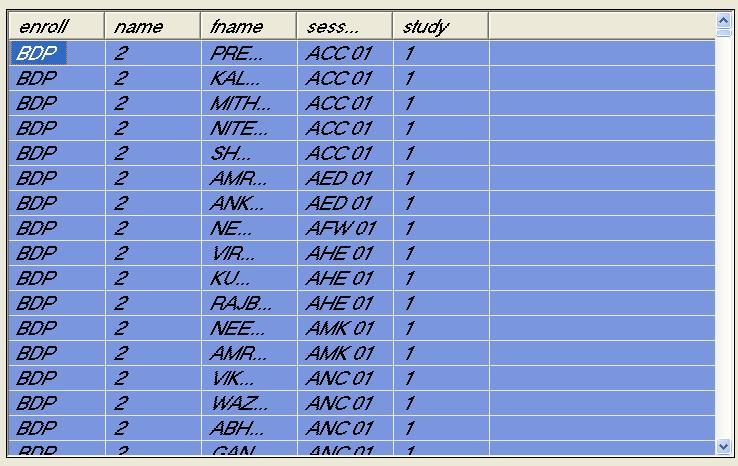
OUTPUT shown as:

VB6.0 Section
listView IN VB6.0
Private Sub Form_Load()
cn.ConnectionString = "Provider=Microsoft.Jet.OLEDB.4.0;Data Source=C:\Documents and Settings\Administrator\My Documents\school.mdb;Persist Security Info=False"
cn.Open
Dim sql As String
sql = "select * from assign"
rs.Open sql, cn
Dim x As Integer
x = 1
Do While Not rs.EOF
ListView1.ListItems.Add = rs.Fields(0).Value
ListView1.ListItems.Item(x).SubItems(1) = rs.Fields(1).Value
ListView1.ListItems.Item(x).SubItems(2) = rs.Fields(2).Value
ListView1.ListItems.Item(x).SubItems(3) = rs.Fields(3).Value
ListView1.ListItems.Item(x).SubItems(4) = rs.Fields(4).Value
rs.MoveNext
x = x + 1
Loop
rs.Close
End Sub
To sort
ListView1.Sorted = True
Here School is database, assign is Table.
OUTPUT shown as:
Insert statement
Private Sub cmdsave_Click()
sqlstr = "insert into employee(empcode,empname,basicsalary)values(" & Val(txtempcode.Text) & ",'" & txtname.Text & "'," & Val(txtbasic.Text) & ")"
gcon.Execute sqlstr
gcon.BeginTrans
gcon.CommitTrans
Update statement
Private Sub Command2_Click()
sqlstr = "update employee set empcode=" & Val(txtempcode.Text) & ",empname='" & txtname.Text & "',empaddress='" & txtaddress.Text & "',basicsalary=" & Val(txtbasic.Text) & " where empcode=" & Val(txtempcode.Text) & ";"
gcon.Execute sqlstr
gcon.BeginTrans
gcon.CommitTrans
end sub
Select Statement
Private Sub cmdsearchok_Click()
sqlstr = "select * from employee where empcode=val(" & txtsearchcode.Text & ");"
rs.Open sqlstr, gcon, adOpenKeyset, adLockBatchOptimistic
If rs.RecordCount = 0 Then
MsgBox "Data not found"
Else
txtempcode.Text = rs.Fields(0)
txtname.Text = rs.Fields(1)
txtaddress.Text = rs.Fields(2)
txtbasic.Text = rs.Fields(3)
End If
rs.Close
End Sub
Delele Statement:
k = Val(ListView1.SelectedItem.Text)
sqlstr = "delete from employee where empcode=" & k & ";"
gcon.Execute sqlstr
gcon.BeginTrans
gcon.CommitTrans
ListView
Items adding
Item addnig as static
Public litem As ListItem
Public Sub staticfill()
Set litem = ListView1.ListItems.Add(, , "1")
litem.ListSubItems.Add , , "rajesh"
litem.ListSubItems.Add , , "sardarpura"
litem.ListSubItems.Add , , "25000"
Set litem = ListView1.ListItems.Add(, , "2")
litem.ListSubItems.Add , , "ramesh"
litem.ListSubItems.Add , , "KNN"
litem.ListSubItems.Add , , "10000"
End Sub
Second Adding at RUNTIME
Public Sub dynamicfill()
sqlstr = "select * from employee"
rs.Open sqlstr, gcon, adOpenDynamic, adLockBatchOptimistic
ListView1.ListItems.Clear
Do While Not rs.EOF
Set litem = ListView1.ListItems.Add(, , rs.Fields(0))
litem.ListSubItems.Add , , rs.Fields(1)
litem.ListSubItems.Add , , rs.Fields(2)
'litem.ListSubItems.Add , , rs.Fields(3)
rs.MoveNext
Loop
rs.Close
End Sub
Getting values from ListView
Private Sub ListView1_Click()
txtempcode.Text = ListView1.SelectedItem.Text
txtname.Text = ListView1.SelectedItem.ListSubItems.Item(1)
txtaddress.Text = ListView1.SelectedItem.ListSubItems.Item(2)
txtbasic.Text = ListView1.SelectedItem.ListSubItems.Item(3)
End Sub
VB.NET Section
Visual Basic .NET is the next generation of Microsoft's popular Visual Basic programming languages. Some programmers refer to the new incarnation as VB 7, but this is incorrect. Visual Basic .NET is actually not backwards-compatible with VB6, meaning that code written in the old version will not compile under VB.NET. In fact, the languages are sufficiently different that many programmers consider them independent.
As a language, Visual Basic.NET has the following traits:

Object-Oriented
Visual Basic 6 included limited support for object-oriented design. Encapsulation was supported with Public and Private data types in Classes, as well as special accessor/mutator pairs called Properties (a feature unique to Visual Basic). Polymorphism received crude support through the Implements keyword, which would require that one class implement all of the methods in another, skeleton class. Inheritance was neglected completely.
As of VB.NET, all of this has changed. As with all .NET languages, VB.NET includes full-blown support for object-oriented concepts, including simple inheritance. Unlike most other OOP languages, everything in VB.NET is an object, including all of the primitives (Short, Integer, Long, String, Boolean, etc.) as well as types, events, and even assemblies. Everything inherits from the Object base class.
Event-Driven
All previous versions of Visual Basic were event-driven, but this feature is heavily enhanced under the .NET framework. Events are no longer recognized because they use a certain naming convention (ObjectName_EventName), but now are declared with a Handles ObjectName.EventName clause. Event handlers can also be declared at runtime using the AddHandler command.
.NET Framework
As the name implies, VB.NET runs on top of Microsoft's .NET framework, meaning the language has full access to all of the supporting classes in the framework. It's also possible to run VB.NET programs on top of Mono, the open-source alternative to .NET, not only under Windows, but even Linux or Mac OSX.
The MouseDown event is available to many controls on the form. A Form can detect when the mouse was held down on it; a textbox can detect when the mouse was held down inside of it; and a Button can detect which mouse button was held down to do the clicking.
We'll see how it all works right now.
First, delete the all but one of the buttons on your form. (You can right click on a control to delete it. If you haven't been following along from the previous lesson, then just create a new project. Add a Button to your form, and leave iton the default name of Button1.)
Go back to your coding window, and delete any code for the button on your form. Delete any Handles code except for Handles Button1.Click. Your coding window should look something like this one:
Hi Progrmmer Do you want to
create connection using adodb..
Coding should be in a separate module..
Public cn As New ADODB.Connection
Public Sub main()
cn.ConnectionString = "Provider=Microsoft.Jet.OLEDB.4.0;Data Source=D:\ignou final (14-4-2011\databases\ignou.mdb;Persist Security Info=False"
cn.Open
frmmdi.Show
End Sub
To connect to database use this
The MouseDown Event in VB .NET

Right at the top of the code window, it says Button1 and Click. The lightning bolt next to Click signifies that it is an Event. If you click the drop down box, you'll see a list of other available events:

Scroll down and find the MouseDown event, as in the image above. When you click on it, a new code stub appears, this one (it has been formatted so that the first line is spread over three lines):
Private Sub Button1_MouseDown(ByVal sender As Object, _
ByVal e As System.Windows.Forms.MouseEventArgs) _
Handles Button1.MouseDown
End Sub
This is a Private Subroutine called Button1_MouseDown. Notice that it Handles the Button1 MouseDown event, and not Button1.Click.
Exploring the Event Arguments
In between the round brackets of the Subroutine, we still have ByVal sender As Object. But we have a new argument now:
ByVal e As System.Windows.Forms.MouseEventArgs
The name of the variable is still e. But the type of Object being stored inside of the e variable is different:
System.Windows.Forms.MouseEventArgs
The bit on the end of all that is what we're interested in: MouseEventArgs. This stands for Mouse Events Arguments. What is being stored inside of the e variable is information the Mouse Event: Did you click a button, if so which one?
The only thing you need to do to detect which button was pressed is to access a property of the e variable. Let's see how to do that.
Which Button was Clicked?
Inside of the Button1_MouseDown Subroutine, type the following code:
If e.Button = MouseButtons.Right Then
MsgBox("Right Button Clicked")
End If
As soon as you type the letter "e", you'll see this pop up box:

To detect which button was clicked, you need the first Property on the list: Button. Double click this property to add it to your code. Then after you typed the equals sign, another pop up list appears. This one:

This is a list of available buttons that VB can detect. Left and Right are the ones you'll use most often.
When you've added the If Statement, your coding window should look something like this:

When you're finished writing your code, run your programme. Click the button with your Left mouse button and nothing will happen. Click it with the Right mouse button and you should see the message box display.
MouseDown and the Form
Stop your programme. When you are returned to the coding environment (Press F7 if you can't see your code), click the down arrow of Button1 at the top of the code. You'll see a drop down box like this:

Select the one highlighted in the image, "Form1 Events". In the Events box to the right, select MouseDown from the list of available events. A new code stub will appear:
Private Sub Form1_MouseDown(ByVal sender As Object, _
ByVal e As System.Windows.Forms.MouseEventArgs) _
Handles MyBase.MouseDown
End Sub
This time, we have a Private Subroutine called Form1_MouseDown. The two arguments are exactly the same as before. The difference is that now this code Handles the MouseDown event for something called MyBase. (This is an object that refers to the code for Public Class Form1.)
The important thing to bear in mind is that we now have a way to detect when a mouse button was clicked on the form itself.
Add the following code inside of Form1_MouseDown:
If e.Button = MouseButtons.Right Then
MsgBox("You clicked on the Form")
End If
The only thing that has changed is the Message Box! The If Statement is exactly the same. Run your programme and test it out. Click anywhere on your Form, and you should see the new message box. However, if you right click on the button, you'll get the old message box. Although the button is on the Form, this is considered a separate control from the Form itself. So it has its own events.
You can detect where on the Form the mouse was when the right mouse button was click. Amend your code for Form1_MouseDown. Change it to this:
Dim xPos As IntegerDim yPos As Integer
If e.Button = MouseButtons.Right Then
xPos = e.X
yPos = e.Y
MsgBox("The X Position is " & xPos & " The Y Position is " & yPos)
End If
First, we're setting up two integer variable, xPos and yPos. After that we have the same If Statement as before:
If e.Button = MouseButtons.Right Then
End If
Inside of the If Statement, we're using the X and Y properties of the e variable:
xPos = e.X
yPos = e.Y
The X property returns how far across, from left to right, the mouse is; the Y property returns how far down, from top to bottom, the mouse is. These values are assigned to our two variables. The result is displayed in a message box.
When you've wrote the code, run your programme and test it out. Right click anywhere on your form. The new message box should display, telling you where the mouse was when the right button was held down.
Click near the top of the form and you'll see the Y position number go down in value; Click near the bottom of the form and you'll see it go up in value. The very top of the form (or a control) has a Y value of zero.
Click from left to right and you'll see the X numbers go up in value. The very left edge of your form has an X value of zero.
In the next part, we'll explore the KeyDown event.

Inheritance in vb.NET(mybase and myvalss keyword)
Public Class Class1
Public x, y As Integer
Public Overridable Sub getval(ByVal a As Integer, ByVal b As Integer)
x = a
y = b
End Sub
Public Overridable Sub disp()
MsgBox("a=" & x)
MsgBox("b=" & y)
End Sub
End Class
Public Class rk
Inherits Class1
Dim a As Integer
Public Overrides Sub getval(ByVal y As Integer, ByVal z As Integer)
a = y + x
End Sub
Public Overrides Sub disp()
MsgBox("a=" & a)
End Sub
Public Sub getall(ByVal j As Integer, ByVal k As Integer, ByVal l As Integer, ByVal m As Integer)
MyBase.getval(50, 89)
MyClass.getval(85, 96)
End Sub
Public Sub dispall()
MyBase.disp()
MyClass.disp()
End Sub
End Class
VB
What is Visual Basic?
VISUAL BASIC is a high level programming language which evolved from the earlier DOS version called BASIC.BASIC means Beginners' All-purpose Symbolic Instruction Code. It is a very easy programming language to learn. The code look a lot like English Language. Different software companies produced different versions of BASIC, such as Microsoft QBASIC, QUICKBASIC, GWBASIC ,IBM BASICA and so on. However, people prefer to use Microsoft Visual Basic today, as it is a well developed programming language and supporting resources are available everywhere. Now, there are many versions of VB exist in the market, the most popular one and still widely used by many VB programmers is none other than Visual Basic 6. We also have VB.net, VB2005, VB2008 and the latest VB2010. Both Vb2008 and VB2010 are fully object oriented programming (OOP) language.
VISUAL BASIC is a VISUAL and events driven Programming Language. These are the main divergence from the old BASIC. In BASIC, programming is done in a text-only environment and the program is executed sequentially. In VB, programming is done in a graphical environment. In the old BASIC, you have to write program code for each graphical object you wish to display it on screen, including its position and its color. However, In VB , you just need to drag and drop any graphical object anywhere on the form, and you can change its color any time using the properties windows.
On the other hand, because the user may click on a certain object randomly, so each object has to be programmed independently to be able to response to those actions (events). Therefore, a VB Program is made up of many subprograms, each has its own program code, and each can be executed independently and at the same time each can be linked together in one way or another.
What programs can you create with Visual Basic 6?
With VB 6, you can create any program depending on your objective. For example, if you are a college or university lecturer, you can create educational programs to teach business, economics, engineering, computer science, accountancy , financial management, information system and more to make teaching more effective and interesting. If you are in business, you can also create business programs such as inventory management system , point-of-sale system, payroll system, financial program as well as accounting program to help manage your business and increase productivity. For those of you who like games and working as games programmer, you can create those programs as well. Indeed, there is no limit to what program you can create ! There are many such programs in this tutorial, so you must spend more time on the tutorial in order to learn how to create those programs.
Creating Your First Application
In this section, we will not go into the technical aspects of Visual Basic programming yet, what you need to do is just try out the examples below to see how does in VB program look like:
Example 2.1.1 is a simple program. First of all, you have to launch Microsoft Visual Basic 6. Normally, a default form with the name Form1 will be available for you to start your new project. Now, double click on Form1, the source code window for Form1 as shown in figure 2.1 will appear. The top of the source code window consists of a list of objects and their associated events or procedures. In figure 2.1, the object displayed is Form and the associated procedure is Load.
Source Code Window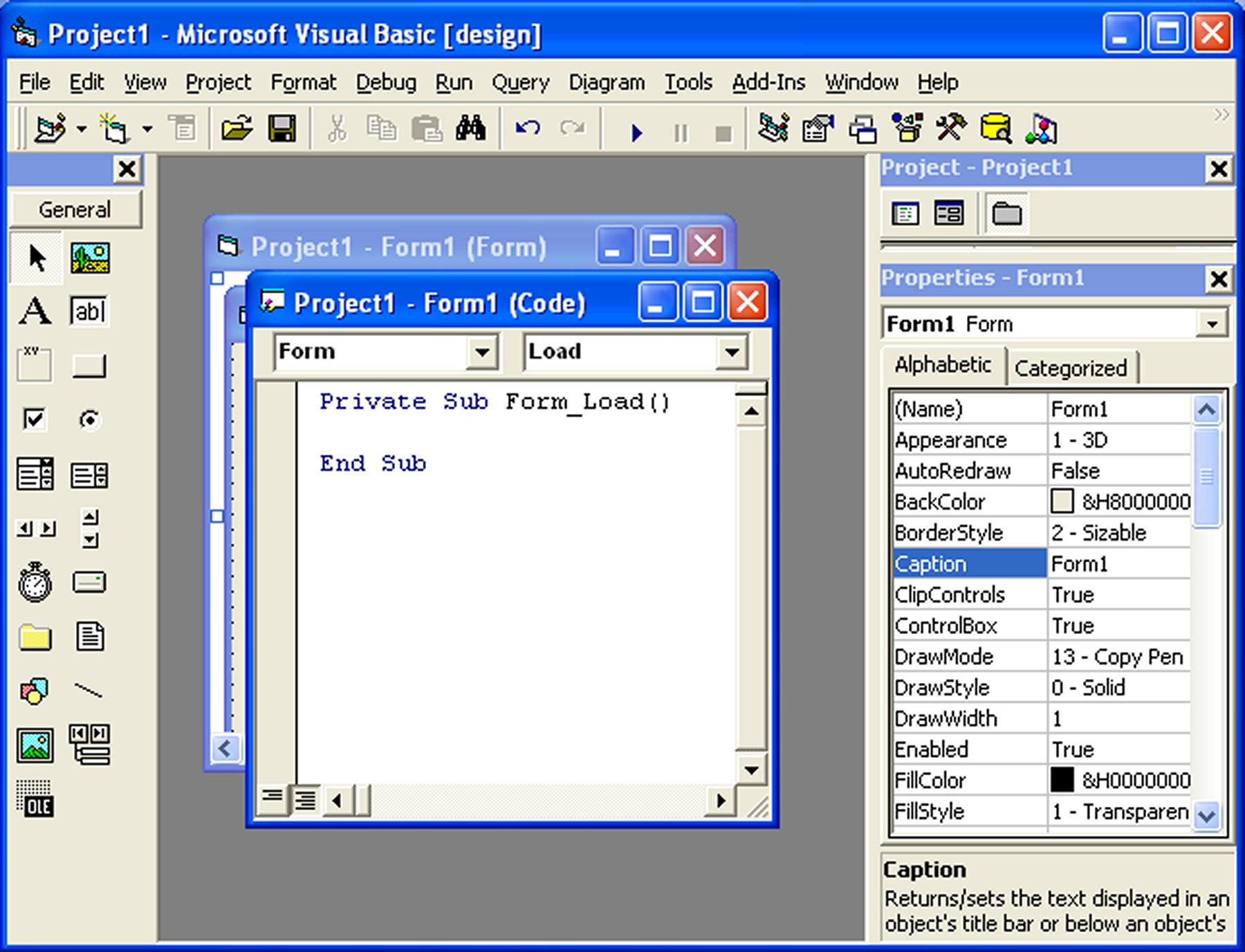
DO YOU WANT KNOW MORE..... CLICK http://rkgenwa.webs.com
You can create sub procedure and function vb .NET
Public Class Form1
Public Sub msg()
MsgBox("hello vb programmer")
End Sub
Public Sub msg1()
MsgBox("hello C# programmer")
End Sub
Public Sub sum(ByVal x As Integer, ByVal y As Integer)
TextBox3.Text = x + y
End Sub
Private Sub Button1_Click(ByVal sender As System.Object, ByVal e As System.EventArgs) Handles Button1.Click
Call msg()
Call msg1()
Call sum(Val(TextBox1.Text), Val(TextBox2.Text))
End Sub
Private Sub Button2_Click(ByVal sender As System.Object, ByVal e As System.EventArgs) Handles Button2.Click
TextBox3.Text = valuecount(Val(TextBox1.Text))
End Sub
Public Function valuecount(ByVal z As Integer) As Integer
Return (z * z * z)
End Function
End Class
Delegates
using System;
using System.Collections.Generic;
using System.Linq;
using System.Text;
namespace ConsoleApplication9
{delegate int demo(int a,int b);
class Program
{
static int sum(int x, int y)
{
return (x+y);
}
static int prod(int x, int y)
{
return (x * y);
}
static void Main(string[] args)
{
demo an = new demo(sum);
int x = an(10, 566);
Console.WriteLine("sum of given no->" + x);
an = new demo(prod);
x=an(4,5);
Console.WriteLine("multiplication of given no->" + x);
Console.ReadLine();
}
}
}
Demo class
Public Class demo
Dim a, b As Integer
Public Overridable Sub getdata(ByVal x As Integer, ByVal y As Integer)
a = x
b = y
End Sub
Public Overridable Sub disp()
MsgBox("a=" & a & " b= " & b)
End Sub
End Class
Public Class test
Inherits demo
Dim x, y As Integer
Public Overrides Sub getdata(ByVal a As Integer, ByVal b As Integer)
x = a
y = b
End Sub
Public Overrides Sub disp()
MsgBox("x=" & x & " y= " & y)
End Sub
Public Sub getall(ByVal x As Integer, ByVal y As Integer, ByVal t1 As Integer, ByVal t2 As Integer)
MyBase.getdata(x, y)
MyClass.getdata(t1, t2)
End Sub
Public Sub dispall()
MyBase.disp()
MyClass.disp()
End Sub
End Class
Form coding
Public Class Form1
Dim ob As New test
Private Sub Button1_Click(ByVal sender As System.Object, ByVal e As System.EventArgs) Handles Button1.Click
ob.getall(Val(TextBox1.Text), Val(TextBox2.Text), Val(TextBox3.Text), Val(TextBox4.Text))
End Sub
Private Sub Button2_Click(ByVal sender As System.Object, ByVal e As System.EventArgs) Handles Button2.Click
ob.dispall()
End Sub
End Class
Want to know MORE...
Click Here
http://msdn.microsoft.com/en-us/vbasic/ms789075.aspx#winforms

|
check.doc Size : 69.5 Kb Type : doc |
|
|
vb notes.doc Size : 1717 Kb Type : doc |
|
|
Crystal Report.doc Size : 274.5 Kb Type : doc |
|
|
listview.doc Size : 488 Kb Type : doc |
